When your certified translation is finished, you can email the documents straight from your order to anyone who needs them, such as a solicitor, an employer, a university admissions office, or a government department. You do not need to download the files and attach them to an email yourself, and you do not need to ask the Translayte team to do it for you. This article shows you how to send your certified files, choose which documents go out, pick the language of the covering email, and check the message before it is sent.
Before You Begin
You can share your files once your order is complete. Before you start, have the email address of everyone you want to send to, and make sure the addresses are correct, because an email cannot be recalled once it has been sent.
You can share your files as many times as you like, so there is no need to get everything into a single email. If you forget someone, simply repeat these steps.
Opening the Share Certified File Window
1. Sign in to your Translayte account and open the order you want to share. When your translation is finished, the progress tracker at the top of the page shows all five stages ticked, from Received through to Completed, and the panel below confirms that your order is complete.
2. Click Share Certified File at the top right of the page, next to the Overview button.
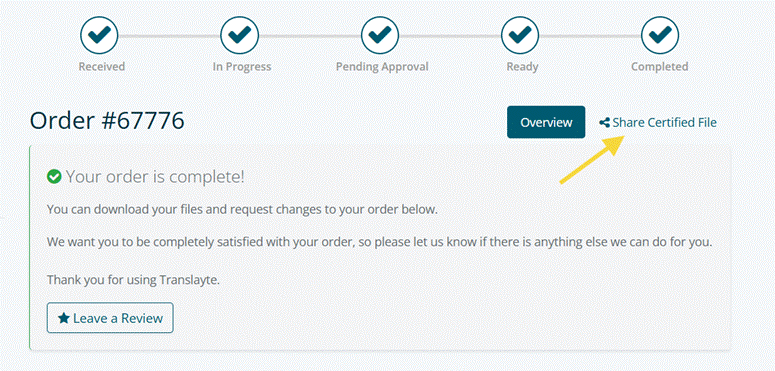
Share Certified File sits to the right of the Overview button on your completed order.
The Share Certified File window opens, with your order number shown at the top.
Choosing Which Files to Send
1. Look at the Files list. Every document held against your order is listed, with its format shown on the right. All of them are selected when the window opens.
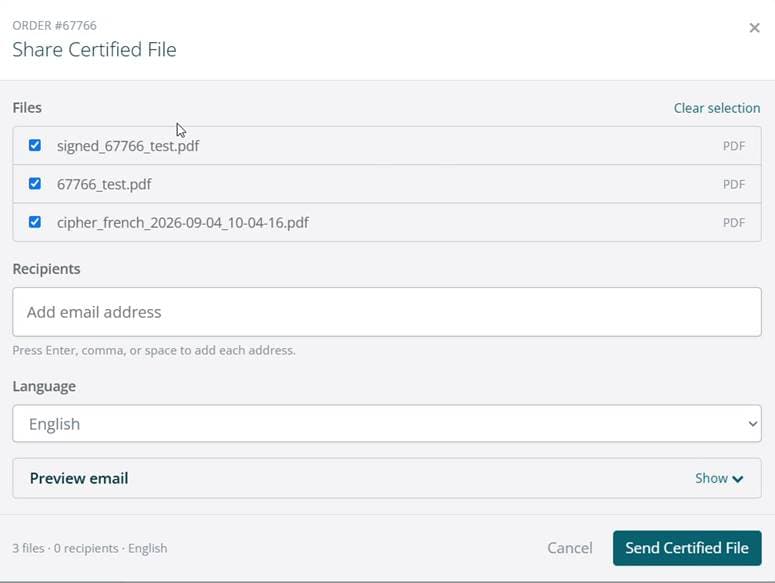
The Files list, with every document selected by default.
2. Clear the checkbox next to any document you do not want to include. The summary at the bottom left of the window updates to show how many files you are sending.
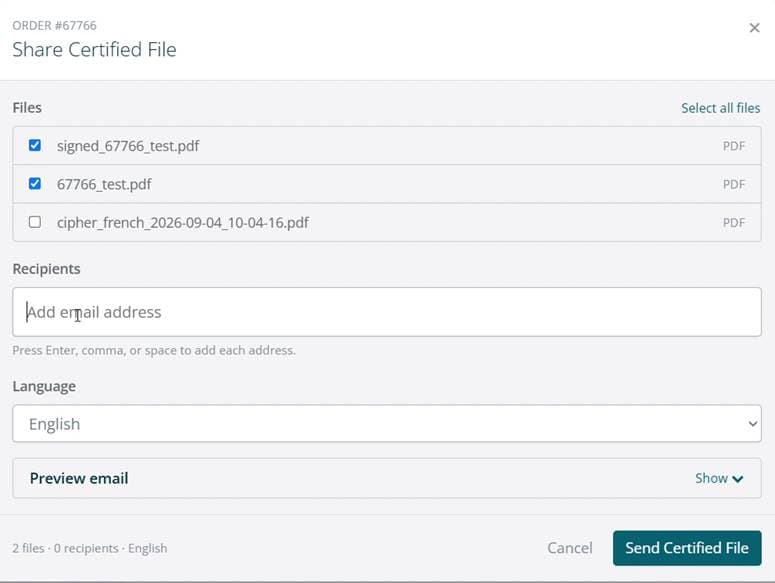
With one document left out, the summary reads two files.
Note: Use Clear selection at the top right of the list to uncheck everything at once, or Select all files to put them all back.
Note: Leaving a document out only keeps it out of this email. It stays on your order, and you can send it another time.
Adding Recipients
1. Click into the Recipients field and type the email address you want to send to.
2. Press Enter, comma, or space to add the address. It appears as a tag, with a small cross you can click if you need to remove it.
3. Repeat for as many recipients as you need. They all receive the same documents.
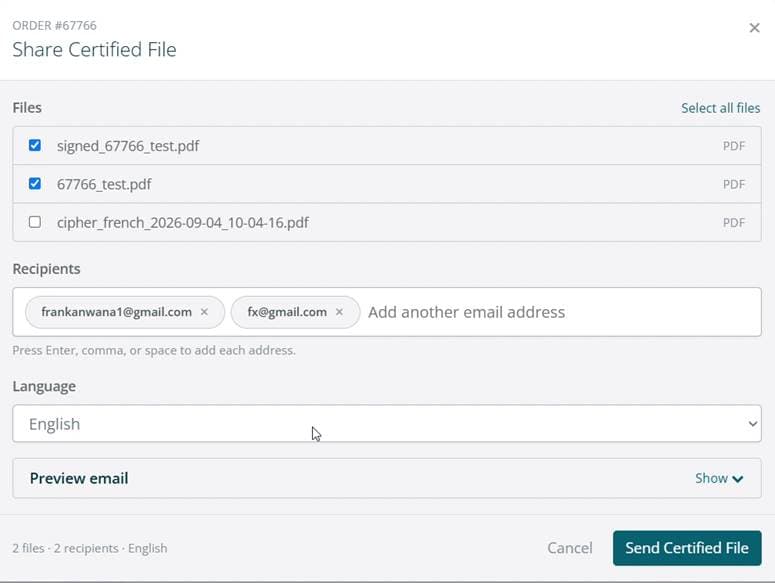
Two recipients added, each shown as a tag you can remove.
Note: Check every address before you send. Once the email has gone out, the documents are in the recipient’s inbox and cannot be recalled.
Choosing the Language of the Email
1. Use the Language list to choose the language your covering email should be written in. This is useful when you are sending your documents to someone who does not read English.
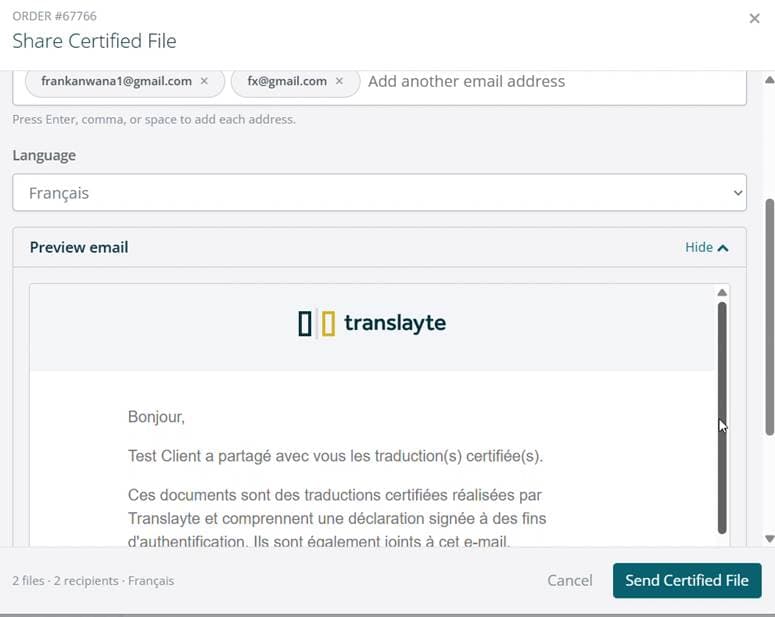
With the language set to Français, the email is written in French.
Note: This setting changes the wording of the email only. Your translated documents are sent exactly as they are, whichever language you choose.
Previewing the Email
1. Click Show next to Preview email to open the message your recipient will receive.
2. Scroll through the preview to read it. It names you as the person sharing the files, lists each selected document as a link, and tells your recipient how long those links stay active.
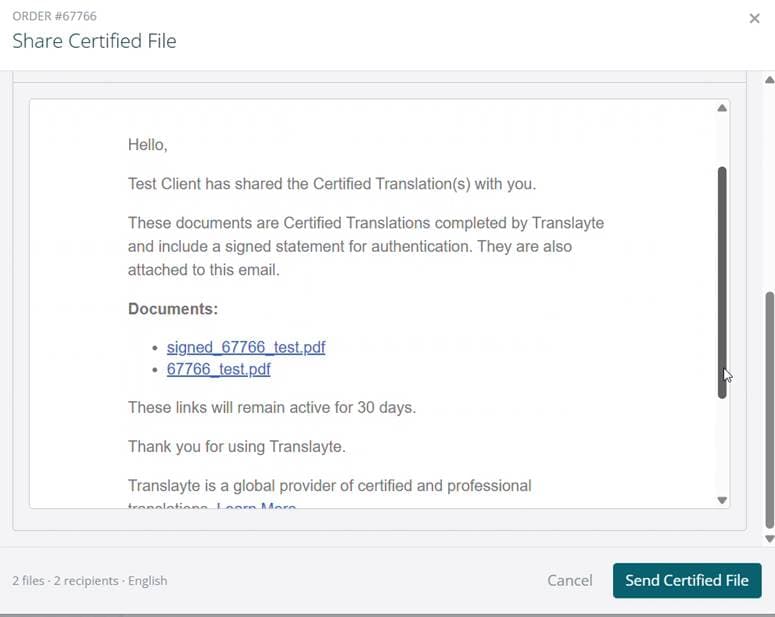
The preview shows the message your recipient will receive, including the documents you selected.
3. Click Hide to close the preview again.
Note: The preview reflects the files and language you have chosen, so open it again if you change either.
Sending Your Files
1. Check the summary at the bottom left of the window, which shows how many files and recipients you have and the language of the email. When you are happy with it, click Send Certified File.
2. A confirmation appears to tell you your translations have been sent, along with the number of recipients they went to.
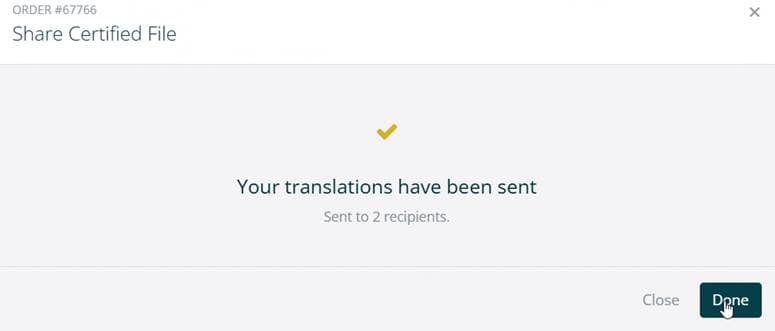
The confirmation you see once your files have been sent.
3. Click Done to finish.
Note: If you do not see the confirmation, check with your recipient before you send again, otherwise they may receive two copies of the same documents.
What Your Recipient Receives
Your recipient gets a single email in the language you chose. It tells them that you have shared your certified translations with them, explains that the documents were completed by Translayte and include a signed statement for authentication, and lists each document you selected as a download link. The documents are attached to the email as well, so your recipient can open them either way.
Note: The download links stay active for 30 days. Ask your recipient to download and keep the files rather than relying on the email later on. If they come back after the links have expired, open your order and share the files again to send a fresh set.
Wrapping Up
You can now send your certified translation to anyone who needs it, straight from your order, with control over which documents go out and what language the covering email is written in. Your order stays available in your account, so you can come back and share the same files again whenever you need to.
If anything does not look right, or a recipient tells you the files did not arrive, use the Contact Us option on the platform and the Translayte team will help.